
Hey folks lot of us love Google Drive or iCloud storage because they can sync our local files to the cloud without you writing any code or manually running S3 sync every time you add or delete a file.
Today we will learn how you can mount a S3 bucket in your local file system (Finder / File manager) so that all the files get stored in your bucket.
Warning
This only works in *nix based OS. No Windows support as of now, but you can use it in WSL.
Install Mountpoint S3
Tip
You can follow the complete installation guide to get it installed depending on your OS.
Basically get the binary executable and copy it into the bin directory using:
wget https://s3.amazonaws.com/mountpoint-s3-release/latest/x86_64/mount-s3.tar.gz


sudo mkdir -p /opt/aws/mountpoint-s3 && sudo tar -C /opt/aws/mountpoint-s3 -xzf ./mount-s3.tar.gz

# add in your .bashrc or .zshrc
export PATH=$PATH:/opt/aws/mountpoint-s3/bin
Once done you can verify the installation with mount-s3 command in your terminal.
❯ mount-s3 --version
mount-s3 1.4.0-unofficial+0b980a0
Create the directory where your bucket will be synced
I will use the /mnt/s3/LearnAWS-Assets to keep my files which will be synced to S3.
Feel free to pass the location which you want, it can be Pictures, Documents or Downloads
sudo mkdir -p /mnt/s3/LearnAWS-Assets
Configure AWS CLI
Make sure you have configured AWS CLI with the right access key and secret, because it will be used to get files from your S3 bucket.
Check our tutorial on AWS CLI setup.
Mount the S3 bucket to your local folder
With the mount-s3 command we pass our bucket name and the path of the directory where the bucket will be mounted:
mount-s3 learnaws-assets /mnt/s3/LearnAWS-Assets
You’ll see a success message after few seconds:
bucket learnaws-assets is mounted at /mnt/s3/LearnAWS-Assets
This means your first step is complete.
If you get permission errors like:
fusermount3: user has no write access to mountpoint /mnt/s3/LearnAWS-Assets
Error: Failed to create FUSE session

Caused by:
    Operation not permitted (os error 1)
Error: Failed to create mount process
You can fix it by simply giving your current user the ownership of the path:
chown $USER /mnt/s3/*
File manager preview
Now when you open that folder from your file manager you’ll see all your files which was in your S3 bucket. (if you had any)
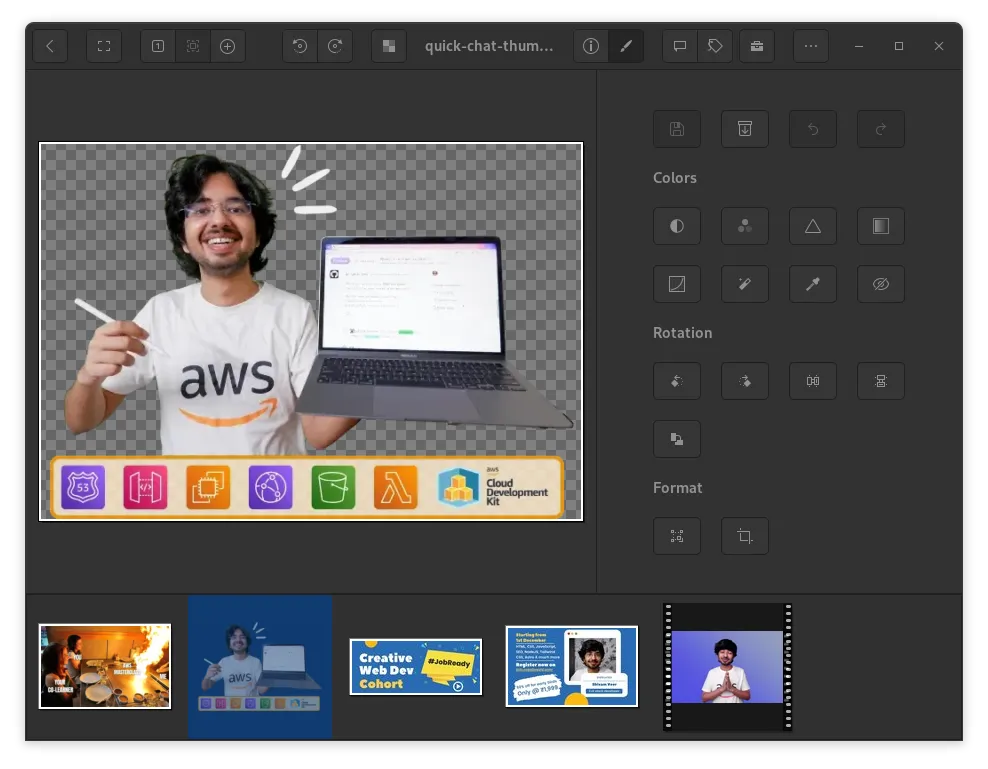
You can now do all the tasks you would normally do e.g adding images, creating folders and even edit them with your image editor.
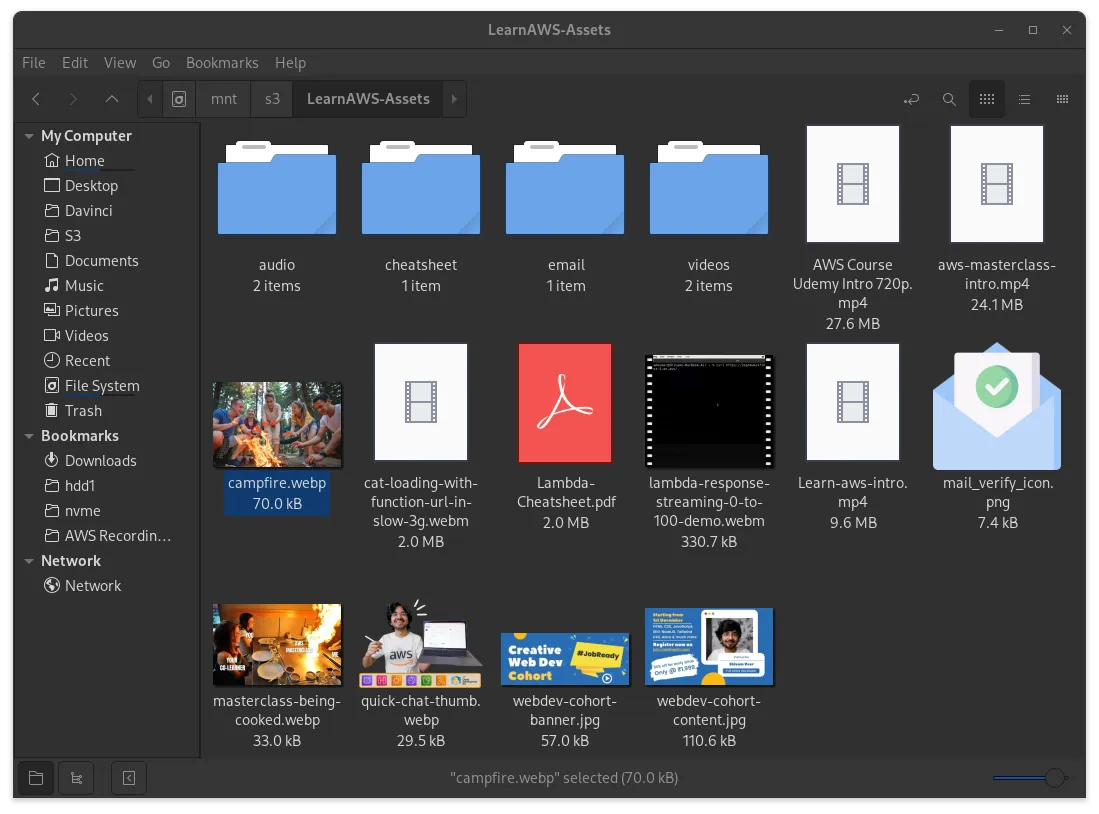 Isn’t this pretty?
Mount the S3 bucket when system powers on
Right now the mountpoint doesn’t support native configuration but you can simply create a service file which can be used by systemd.
Here is an example of service unit file:
[Unit]
Description=Mountpoint for Amazon S3 mount
Wants=network.target
AssertPathIsDirectory=/mnt/s3/LearnAWS-Assets

[Service]
Type=forking
User=shivam
Group=shivam
ExecStart=/usr/bin/mount-s3 learnaws-assets /mnt/s3/LearnAWS-Assets
ExecStop=/usr/bin/fusermount -u /mnt/s3/LearnAWS-Assets

[Install]
WantedBy=remote-fs.target
Create the service file in /lib/systemd/system/mountpoint-s3.service
Reload the systemd
Once you have created the service file, reload the service daemon with the command below:
sudo systemctl daemon-reload
Check service status with systemctl
❯ systemctl status mountpoint-s3.service
○ mountpoint-s3.service - Mountpoint for Amazon S3 mount
     Loaded: loaded (/usr/lib/systemd/system/mountpoint-s3.service; disabled; preset: disabled)
     Active: inactive (dead)
Right now we can it says that it’s disabled and inactive
Enable the service
If it’s not enabled we need to enable it using the command below
sudo systemctl enable mountpoint-s3.service
You’ll see something like this:
Created symlink /etc/systemd/system/remote-fs.target.wants/mountpoint-s3.service → /usr/lib/systemd/system/mountpoint-s3.service.
If you check the status of service again, you should see it as enabled:
❯ systemctl status mountpoint-s3.service
○ mountpoint-s3.service - Mountpoint for Amazon S3 mount
     Loaded: loaded (/usr/lib/systemd/system/mountpoint-s3.service; enabled; preset: disabled)
     Active: inactive (dead)
When you restart or reboot your system it will automatically be launched.
Test systemd service file
Unmount the current directory
If you want to see it without rebooting then you’ll have to unmount the file system first using the fusermount
fusermount -u /mnt/s3/LearnAWS-Assets
Your files will be gone from the folder, if they are still there you just gotta refresh.
Start the service
sudo systemctl start mountpoint-s3.service
It might take few seconds to find the bucket and mount it.
Check service status
❯ systemctl status mountpoint-s3.service
● mountpoint-s3.service - Mountpoint for Amazon S3 mount
     Loaded: loaded (/usr/lib/systemd/system/mountpoint-s3.service; enabled; preset: disabled)
     Active: active (running) since Sat 2024-06-15 23:58:26 IST; 7s ago
    Process: 87180 ExecStart=/usr/bin/mount-s3 learnaws-assets /mnt/s3/LearnAWS-Assets (code=exited, status=0/SUCCESS)
   Main PID: 87181 (mount-s3)
      Tasks: 23 (limit: 38198)
     Memory: 15.0M (peak: 16.4M)
        CPU: 80ms
     CGroup: /system.slice/mountpoint-s3.service
             └─87181 /usr/bin/mount-s3 learnaws-assets /mnt/s3/LearnAWS-Assets

Jun 15 23:58:20 shivam-linux systemd[1]: Starting Mountpoint for Amazon S3 mount...
Jun 15 23:58:24 shivam-linux mount-s3[87181]: [WARN] mountpoint_s3::cli: failed to detect network throughput. Using 10 gbps as throughput. Use --maximum-throughput-gbps CLI >
Jun 15 23:58:26 shivam-linux mount-s3[87181]: [WARN] mountpoint_s3::cli: bucket learnaws-assets is in region ap-south-1, not us-east-1. redirecting...
Jun 15 23:58:26 shivam-linux mount-s3[87180]: bucket learnaws-assets is mounted at /mnt/s3/LearnAWS-Assets
Jun 15 23:58:26 shivam-linux systemd[1]: Started Mountpoint for Amazon S3 mount.
You are all set now. S3 is yours for forever. Till you keep paying the bills ;)
Limitations
The S3 limitations will still apply here like updating some text in a file or renaming a folder.
Improve speed and save cost
Enable caching
Ideally you would want to configure caching in the mountpoint-s3 which will prevent your computer from downloading files from S3 again and again.
You can set for how long the files will be cached for.
Keep bucket closer to you
If you are near Ohio keep the bucket in Ohio instead of keeping it in Canada or Europe. This will reduce the latency and improve download and upload speed as well.
You are free to use AWS transfer accelerator to improve the same as well, keeping the bucket in region farther from you.
