
The first question you might have is why does this exist? With Amazon SES, there’s no way to access email templates via AWS Console.
When you log in to Amazon SES and go to Email Templates from the side pane, AWS doesn’t help you create new templates, or view the existing email template contents.
It displays just the list of the template names.

No more cry ;(
This is why we have build AWSMail. A feature rich Amazon SES template editor / manager.

In this article you’ll learn about the how to use AWSMail to manage and edit your Amazon SES templates.
Create Access Key Id and Secret Access Key for SES
To use AWSMail you need to create an IAM user in your AWS account and generate access key id and secret.
If you already have an Access Key Id and Secret Key with SES permission you can skip this step.
Attach Amazon SES policy to the IAM user
The IAM user needs to have the permission to list the templates, create, update or delete the email templates.
Use this JSON policy as an example:
{
  "Version": "2012-10-17",
  "Statement": [
    {
      "Sid": "SESTemplateCrudPolicy",
      "Effect": "Allow",
      "Action": [
        "ses:UpdateEmailTemplate",
        "ses:GetEmailTemplate",
        "ses:CreateEmailTemplate",
        "ses:DeleteEmailTemplate",
        "ses:ListEmailTemplates"
      ],
      "Resource": "*"
    }
  ]
}
Login to AWSMail with Access Key & Secret
Once you’re done generating the Access Key & Secret you can login with these credentials.
You can safely paste your access key and secret access key in the page. Why is it safe?
Your key and secret never leaves the browser.
All keys are stored in your browser’s local storage. They are gone - the moment you clear your local storage.
Save Access Key & Secret
There is a checkbox which says Save Credentials Locally. If you uncheck it, your keys wont be stored locally on your browser for the next time you log in. You’ll be needed to provide your credentials again if the page is reloaded.
Select SES region
Choose an AWS region where you would like to have your email templates created. By default, they get created in the us-east-1 region (N. Virginia).
If you choose regions for which Amazon SES is not enabled in your AWS account, you might get an error saying “The security token included in the request is invalid.”
Enable that specific region, and try again.
AWSMail Dashboard
After a successful authentication, you’ll see this on your dashboard:

By the way, if you already tried your hand at creating email templates on your own, your dashboard will look something like this:
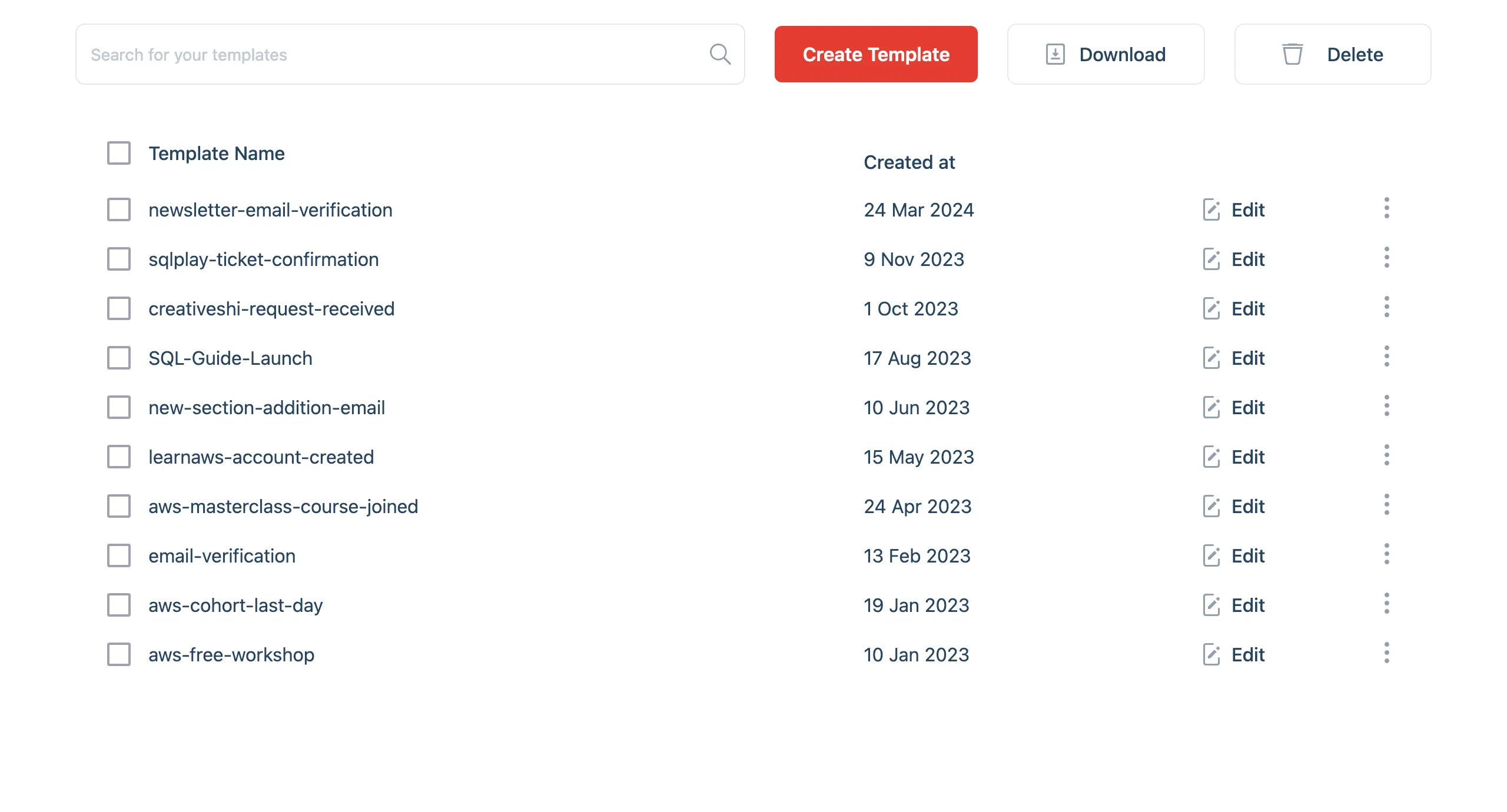
It lists all the email templates you already own in that particular AWS region.
How do you create email templates?
Let’s hit the Create Template button (and put our sleeping guy to work)!
On clicking Create Template button in the last screen, you’ll be presented with this form.

- In the Template name field, name your template only with alphanumeric (a-z, A-Z), underscores (_), and dashes (-) are allowed. No spaces.
- In the Template subject field, put a Subject line for an email your recipients would dig.
- The Template text field should have a plain text version the email.
- The Template HTML field is where the meat of your email goes in, complete with HTML and CSS.
Example of an Email Template
Here’s what we put in:
Template name: Worry-Knot
Templete subject: You seem worried {{name}}. What's the matter?
Template text: Breathe in. ————————— And out.
Template HTML:
<!doctype html>
<html>
  <head>
    <title>It's me.</title>
  </head>
  <body>
    <h1 style="margin-bottom: 10px;">Dough-n't Worry</h1>
    <p style="margin-bottom: 10px;">No need to be sus, I'm just HTML</p>
    <img
      src="https://images.unsplash.com/photo-1570727624862-3008fe67a6be"
      style="width: 90%;"
    />
    <h2 style="margin-bottom: 10px;">I just knead your attention</h2>
    <img
      src="https://images.unsplash.com/photo-1517686469429-8bdb88b9f907"
      style="width: 90%;"
    />
  </body>
</html>
Feel free to replace the HTML with your own version of email template for Amazon SES.
Caution
The HTML in demo might not be widely supported by every email client.
Preview Emails Instantly in SES Template Manager
As you type in a valid HTML in the Template HTML field, you’ll see a preview of what your email would look like to your email recipients. Yes, without even sending the email to anyone.

Publish your first SES email template
Your SES email template is something you can come back to and edit whenever you like.
Click the Create Template button to save your first SES email template.

Editing your SES Email templates
We just created our first email template.
Now what if we want to edit it?
You can click on the template name which a link to the template to view or edit the template.
Search for an email template by its name
If you have multiple SES email templates, it’s hard to search for them visually.
But if you know the name, you can search for it.
Let’s search for a template we just created - with Worry in the name.
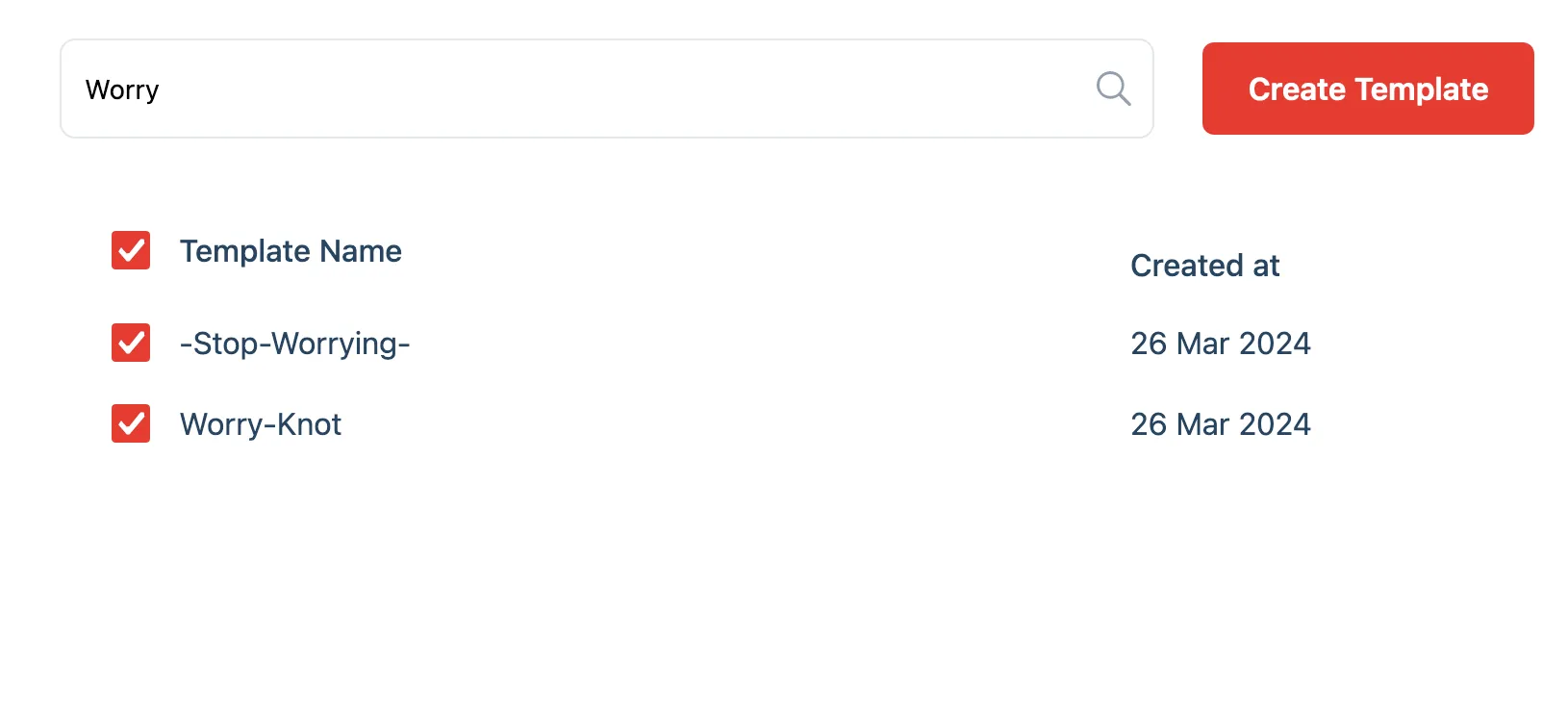
Wait … You can download SES email templates too?
Yes. You can download your SES email template in bulk and take it offline with you.
- Select one or more template which you want to download
- Click on the Download button on the top navigation bar
Tip
This can be helpful if you’re migrating your templates
What format does the email template get downloaded in?
Your SES template gets downloaded in two files:
- You get the template name, subject and text downloaded as a Text file (
.txt). - You get the Template HTML downloaded as a HTML file (
.html).

Delete one or more SES templates
Found a better email template? It’s time you bury the dead. Delete them together by selecting them using multiple checkboxes, and clicking the big Delete button on the top-right of the screen.

We’ve put confirmation box where you need to type delete followed by number of templates to make sure that you don’t accidentally delete any of your SES email templates.
Selecting all SES templates
If you click the major checkbox beside Template Name, all your email templates get selected. If you click Delete, all email templates will get deleted.

That’s a wrap!
We hope you enjoy using AWS Mail to manage your Amazon SES Email Templates as much as we do. You can share your feedback on GitHub discussion.